Introducing Phish Alert Button (Beta)

Published on
January 27, 2022
Read time
5 mins

Introducing Phish Alert Button (Beta)

Publicado el
January 27, 2022
Tiempo de lectura
5 min de lectura
Categoría
5 min de lectura

Introducing Phish Alert Button (Beta)

Publicado el
27 Jan 22

Table of contents

Subscribe to newsletter

By clicking Sign Up you're confirming that you agree with our Terms and Conditions.
Thank you! Your submission has been received!
Oops! Something went wrong while submitting the form.

Allow your users to report suspicious emails directly from their Outlook inbox with the new usecure Phish Alert Button.

What is the Phish Alert Button?

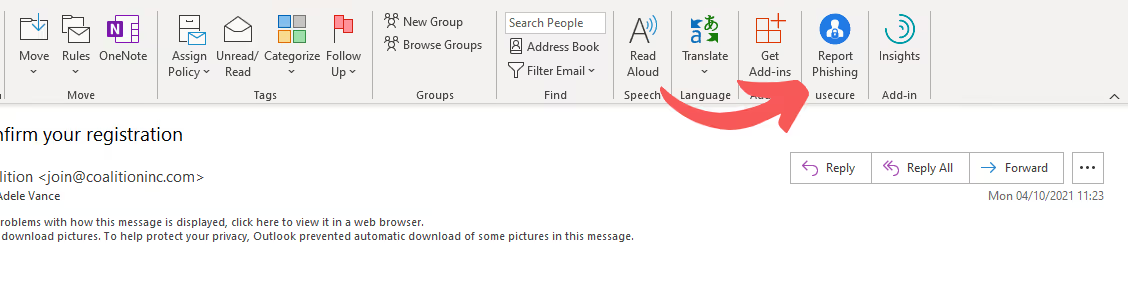
The Phish Alert Button is an Outlook add-in that allows end users to report emails they suspect are attempts at phishing. If the email was part of a simulation, the user is congratulated for spotting it. If the email wasn't part of a simulation, it is reported to you (the IT team) and Microsoft's phishing analysis team.
How does the Phish Alert Button work?

When users suspect an email they have received could be an attempt at phishing, they will simply need to click the 'Report Phishing' button in their Outlook ribbon and confirm that they wish to submit the email. The button works on Outlook desktop, mobile and web.

Once the user has clicked the button, they will be greeted with a congratulatory message if the email was part of a phishing simulation. You will be able to configure what happens if the email isn't part of a phishing simulation. This could be capturing the email and sending it with an attached report to your chosen email address, or alternatively sending it to Microsoft's phishing analysis team directly. You can also choose to do both.

How can I install the Phish Alert Button?

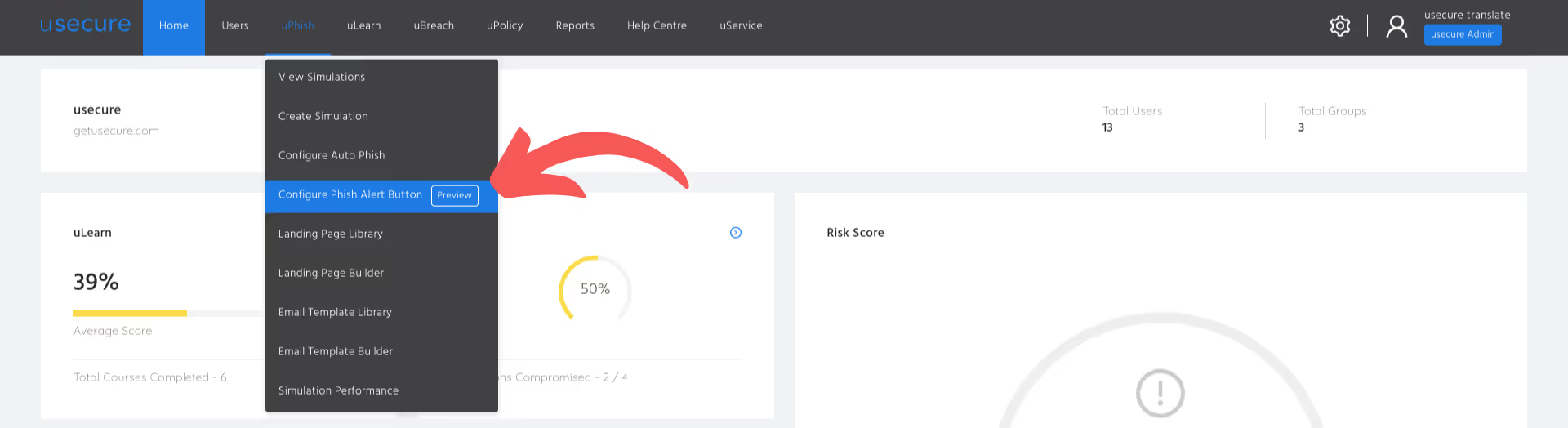
The Phish Alert Button settings are now accessible under the uPhish drop-down in the usecure top menu bar. After you have configured and saved your settings, you will be able to download a manifest file that you can import into your Microsoft 365 setup.

Start now by reading the documentation in the usecure Help Centre.
How do I get started with usecure?

Don't have a usecure account yet? Don't worry - it's easy to get started. Simply head over to usecure.io and start your free 14-day Human Risk Management trial now.

Subscribe to newsletter

BOOK A DEMO

See usecure in action

A 30-minute walkthrough of how to cut human risk across your users, tailored to MSPs and IT teams.

Get a Demo

Subscribe to newsletter

By clicking Sign Up you're confirming that you agree with our Terms and Conditions.
Thank you! Your submission has been received!
Oops! Something went wrong while submitting the form.

Allow your users to report suspicious emails directly from their Outlook inbox with the new usecure Phish Alert Button.

What is the Phish Alert Button?

The Phish Alert Button is an Outlook add-in that allows end users to report emails they suspect are attempts at phishing. If the email was part of a simulation, the user is congratulated for spotting it. If the email wasn't part of a simulation, it is reported to you (the IT team) and Microsoft's phishing analysis team.

How does the Phish Alert Button work?

When users suspect an email they have received could be an attempt at phishing, they will simply need to click the 'Report Phishing' button in their Outlook ribbon and confirm that they wish to submit the email. The button works on Outlook desktop, mobile and web.

Once the user has clicked the button, they will be greeted with a congratulatory message if the email was part of a phishing simulation. You will be able to configure what happens if the email isn't part of a phishing simulation. This could be capturing the email and sending it with an attached report to your chosen email address, or alternatively sending it to Microsoft's phishing analysis team directly. You can also choose to do both.

How can I install the Phish Alert Button?

The Phish Alert Button settings are now accessible under the uPhish drop-down in the usecure top menu bar. After you have configured and saved your settings, you will be able to download a manifest file that you can import into your Microsoft 365 setup.

Start now by reading the documentation in the usecure Help Centre.

How do I get started with usecure?

Don't have a usecure account yet? Don't worry - it's easy to get started. Simply head over to usecure.io and start your free 14-day Human Risk Management trial now.

Suscríbete al boletín

Suscríbete al boletín

Al hacer clic en Suscríbete, confirmas que aceptas nuestros términos y condiciones.
¡Gracias! Tu envío ha sido recibido!
¡Ups! Algo salió mal al enviar el formulario.

Descubre cómo las empresas de servicios profesionales reducen el riesgo humano con usecure

Descubre cómo los equipos de TI de servicios profesionales usan usecure para proteger los datos confidenciales de sus clientes, mantener el cumplimiento normativo y salvaguardar su reputación, sin interrumpir el trabajo facturable.

Related posts

Explore more insights, updates, and resources from usecure.