The most common examples of phishing emails

Published on
October 9, 2026
Read time
5 mins

The most common examples of phishing emails

Publié le
October 9, 2026
Temps de lecture
5 min
Catégorie
5 min de lecture

The most common examples of phishing emails

Publié le
09 Oct 26

Table of contents

Subscribe to newsletter

By clicking Sign Up you're confirming that you agree with our Terms and Conditions.
Thank you! Your submission has been received!
Oops! Something went wrong while submitting the form.

KEY TAKEAWAYS

  • Phishing emails can look legitimate. Attackers copy trusted brands, colleagues and everyday workplace requests to trick people into taking action.
  • Watch for the warning signs. Unexpected links, unusual payment requests, lookalike domains and urgent deadlines are common red flags.
  • A genuine sender isn't always safe. Attackers can compromise real accounts and hijack existing email conversations.
  • ‍

    SEO title: 12 Phishing Email Examples & Warning Signs
    Meta description: See 12 realistic phishing email examples, learn the warning signs and discover how to spot, report and avoid phishing attacks.
    Slug: the-most-common-examples-of-a-phishing-email (retain)

    12 phishing email examples and how to spot them

    A phishing email no longer has to look suspicious to work. Many arrive with correct spelling, clean formatting and a familiar logo, copying everyday requests such as Microsoft 365 sign-in prompts, shared documents, supplier invoices and messages from a manager. Attackers also use AI-powered phishing attacks to write fluent, personalized messages at scale.

    People remain central to how breaches happen. Verizon's 2026 Data Breach Investigations Report found that the non-malicious human element was present in 62% of breaches. That includes errors and social engineering beyond phishing, but it shows why helping people recognize and respond to suspicious requests still matters. Phishing itself remains active: the APWG recorded a 10.1% rise in phishing attacks in Q2 2026, and June's 425,808 attacks were its highest monthly total since April 2023.

    Below are 12 realistic phishing email examples, the warning signs in each and what to do if one reaches your inbox. For phishing beyond email, see our guide to the different types of phishing attacks.

    What does a phishing email look like?

    A phishing email is a message that pretends to come from a trusted person or organization so that the recipient will click a link, open a file, share credentials, send money or make a change they otherwise would not. Some are sent to thousands of people at once. Others are spear phishing attacks, researched and written for one person or team.

    The common warning signs are:

    • A sender name that looks familiar but an email address or domain that does not match
    • A request to sign in, pay, download, scan or reply that you were not expecting
    • Pressure to act quickly, often with a deadline or a threat of lost access
    • Links or QR codes that lead somewhere other than the service they claim to represent
    • Requests to change bank details, bypass a normal process or keep something confidential
    • A tone, signature or level of formality that feels slightly off for the sender

    Attackers reuse familiar branding, lookalike domains and personal details to make messages convincing. Some even send phishing emails from compromised accounts, so a legitimate sender address is not always proof that a message is safe.

    12 phishing email examples

    The table below summarizes 12 phishing email examples commonly encountered in workplace inboxes, with warning signs and practical steps to stay safe.

    Not every unexpected email is malicious, and not every phishing email is unexpected. The goal is to pause and verify, not to distrust everything

    Phishing email example

    What it pretends to be

    What the attacker wants

    Key warning sign

    What to do

    Fake invoice

    An overdue supplier invoice

    Payment to a new bank account

    Changed bank details

    Call the supplier on a known number

    Microsoft 365 account alert

    A password, mailbox or sign-in notice

    Your Microsoft 365 credentials

    Link to a non-Microsoft domain

    Open Microsoft 365 directly

    Cloud document sharing

    A colleague sharing a file

    Your sign-in details

    Sign-in page on an unfamiliar domain

    Confirm with the sender separately

    HR and payroll impersonation

    A policy, salary or payroll update

    Credentials or redirected pay

    Request to change bank details by email

    Go to the HR system directly

    CEO and executive impersonation

    An urgent request from a senior leader

    Gift cards, a transfer or files

    Secrecy and an unusual payment method

    Verify by phone or in person

    Fake IT helpdesk request

    Your IT support team

    Passwords, codes or remote access

    Any request for a password or code

    Contact your helpdesk directly

    QR code phishing

    A security or document prompt

    Credentials entered on your phone

    A QR code for a sign-in task

    Use the service's usual app or site

    Hijacked reply chain

    A reply in a real conversation

    Payment changes or credentials

    A sudden change in the request

    Verify through a separate channel

    E-signature request

    A contract waiting for signature

    Your sign-in details

    Login page on an unfamiliar domain

    Check the e-signature service directly

    Delivery and shipping scam

    A missed delivery or customs fee

    Card details or a small payment

    A fee for a parcel you did not order

    Track through the carrier's own site

    Callback phishing

    A subscription renewal receipt

    A phone call leading to remote access

    A phone number as the only action

    Check the account on its official site

    Job application attachment

    A CV or job application

    Malware or credentials

    Password-protected or unusual files

    Use your applicant tracking system

    1. Fake invoice and payment requests

    What it looks like: An overdue invoice or a payment reminder from a supplier, sometimes with a familiar name, logo and invoice number.
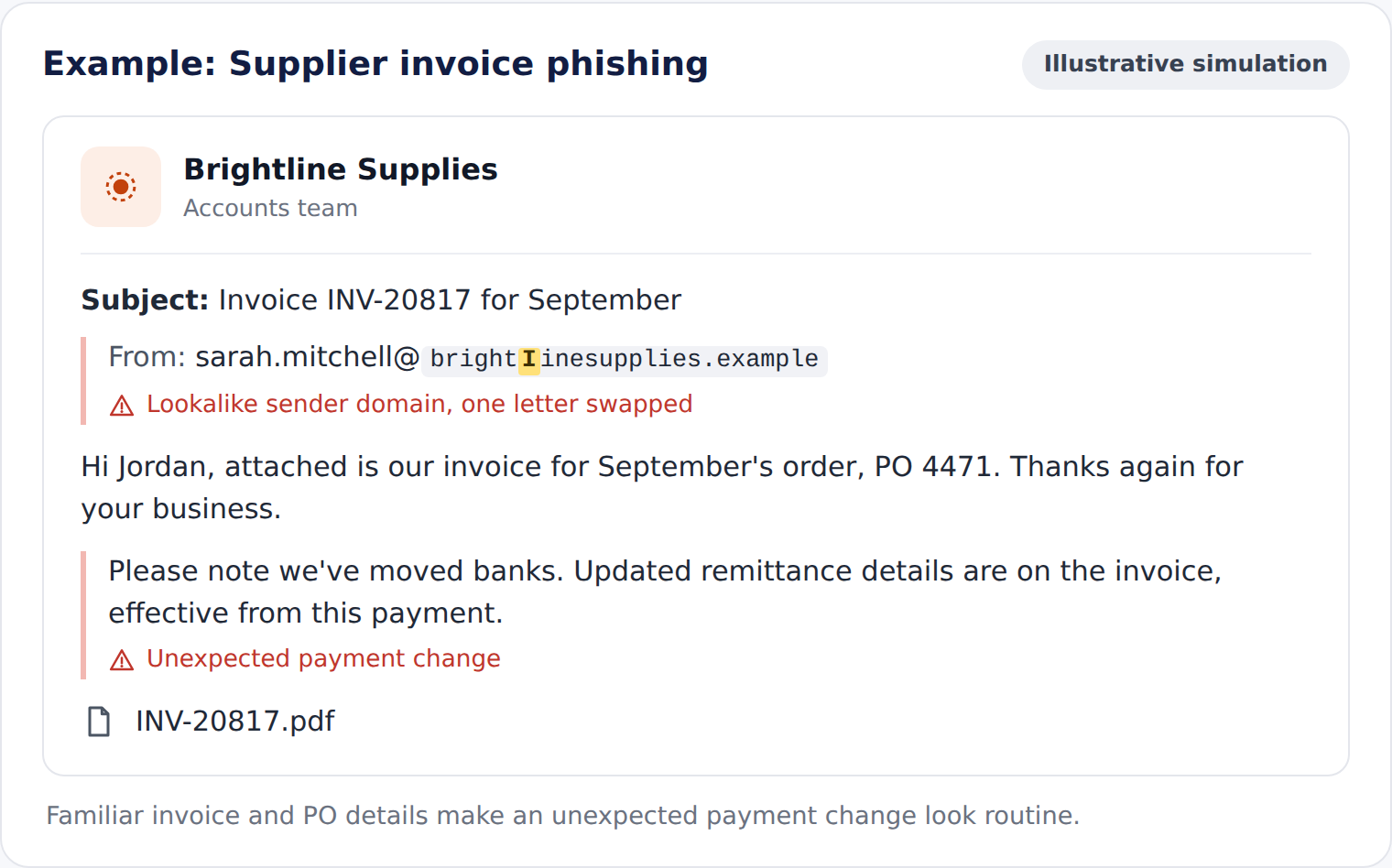
    How the attack works: The attacker wants you to open a malicious attachment, pay through a fake portal or update a supplier's bank details. These business email compromise attacks are growing: APWG reports that wire-transfer BEC attacks observed by Fortra rose 88% from Q1 to Q2 2026. One prolific group paired fake invoices with an invented email thread to make the request look already approved.

    Warning signs: New or changed bank details, an invoice you cannot match to an order, a lookalike sender domain and pressure to pay before a deadline.

    What to do: Contact the supplier using details you already hold, not those in the email, and follow your organization's payment-verification process.

    2. Microsoft 365 account alerts

    What it looks like: A notice that your password is expiring, your mailbox is full, a sign-in was blocked or your multi-factor authentication needs re-registering.
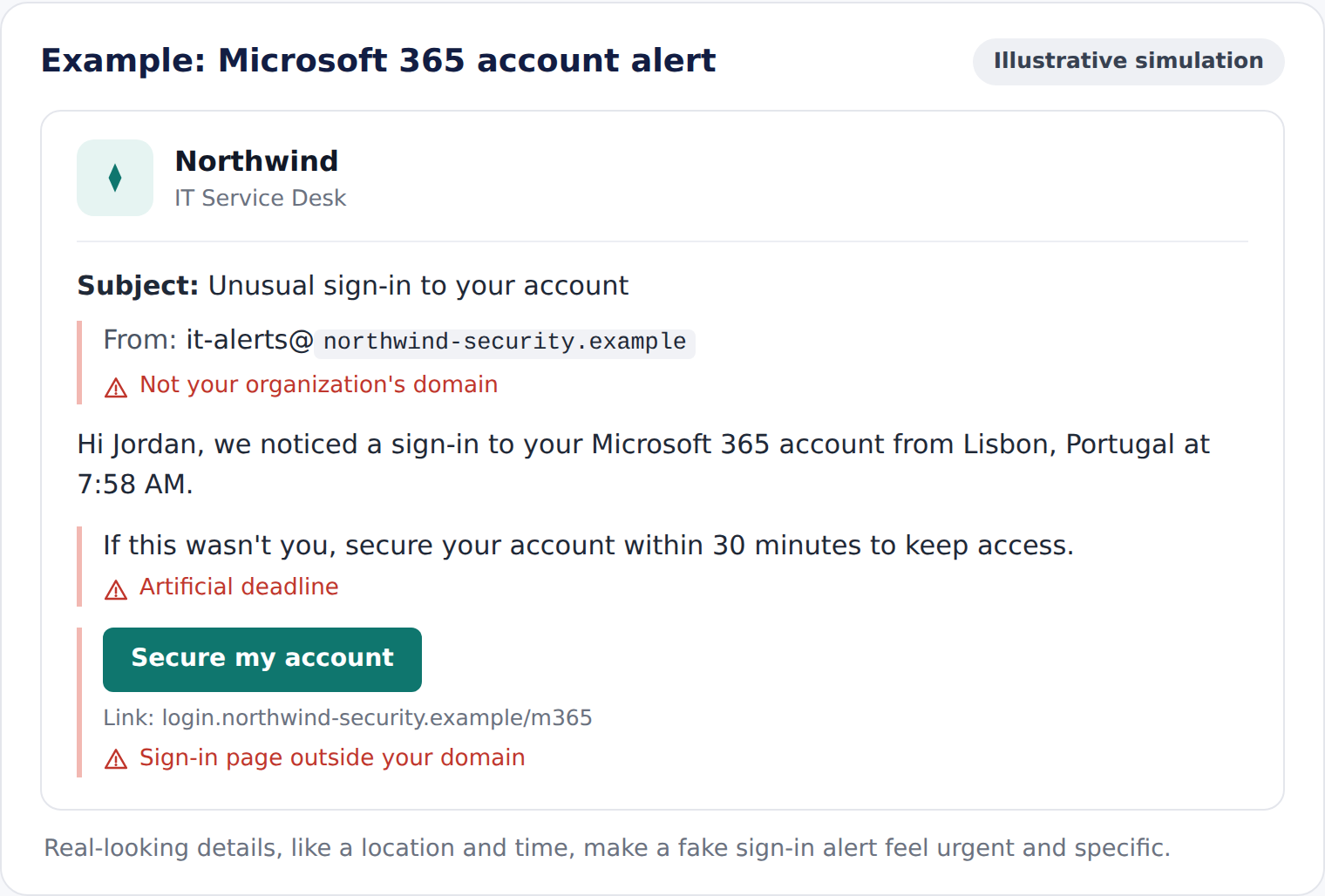
    How the attack works: The link leads to a convincing copy of the Microsoft 365 sign-in page, where attackers capture credentials. Some phishing kits can also steal session tokens, potentially allowing attackers to bypass certain multi-factor authentication protections.

    Warning signs: A sender that is not Microsoft or your own IT team, a link domain that does not belong to Microsoft, a generic greeting and a short deadline.

    What to do: Do not use the link. Open Microsoft 365 from your usual bookmark or app, check for any real alerts there and report the email.

    3. Cloud document sharing

    What it looks like: A notification that someone has shared a file with you, often with a name like "Q3 payment schedule" or "Revised contract."
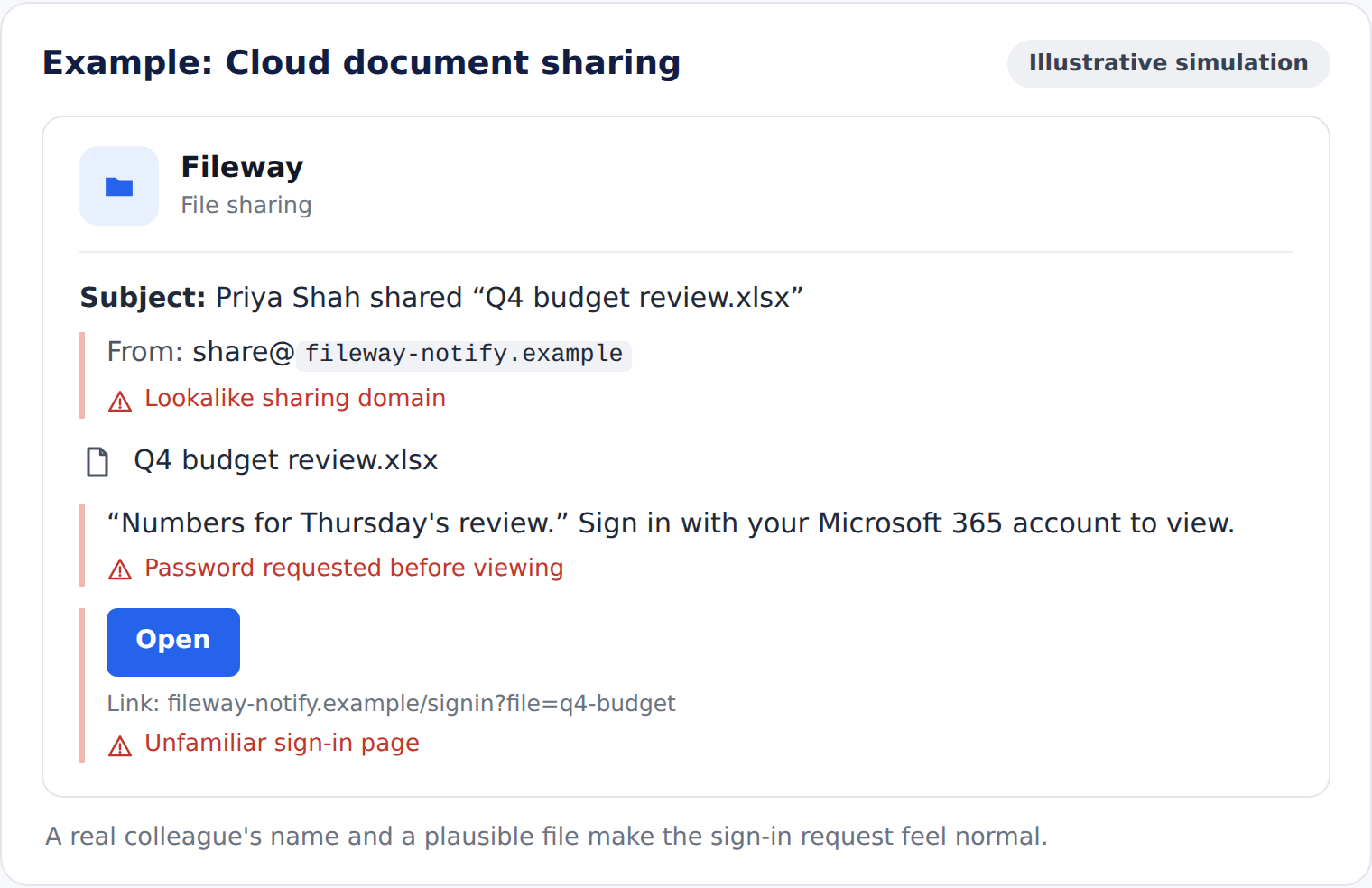
    How the attack works: Opening the file takes you to a page that asks you to sign in first. Some of these notifications come from genuine sharing services, sent from an account the attacker has already compromised.

    Warning signs: A file you were not expecting, a sender you do not usually work with, a vague message and a sign-in step for a document you would normally open directly.

    What to do: Ask the sender through a separate channel whether they shared it, and open files through your usual app rather than the email.

    4. HR and payroll impersonation

    What it looks like: An update to the holiday policy, a salary review, a new benefits portal or a request to confirm your payroll details.
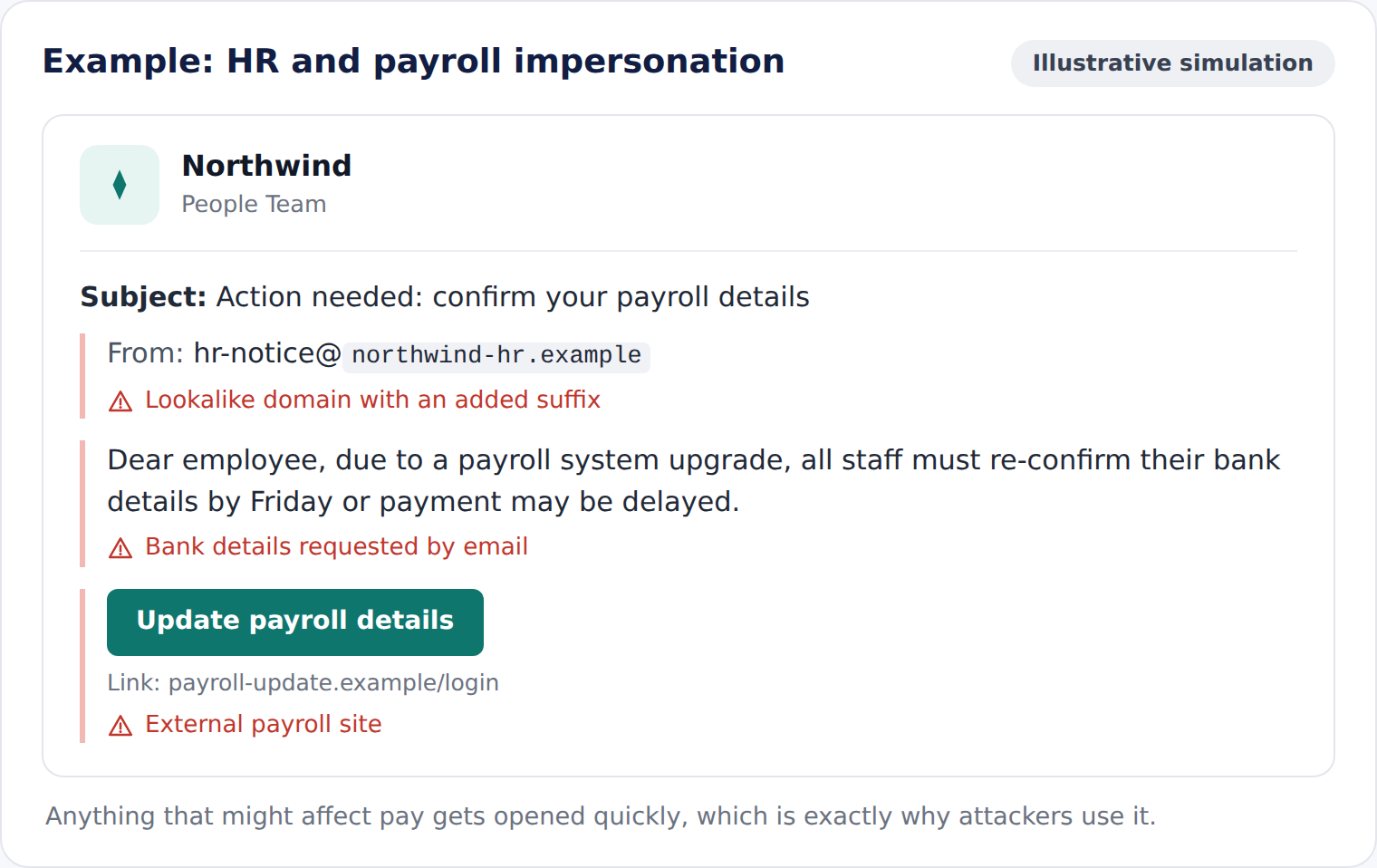
    How the attack works: The attacker wants your credentials, or wants you to submit new bank details so your pay is redirected. These emails work because most people want to read them straight away.

    Warning signs: A link to an unfamiliar portal, a request to change bank details by email and an HR sender address that does not match your organization's domain.

    What to do: Open your HR or payroll system directly, and confirm any request with the HR team before changing anything.

    5. CEO and executive impersonation

    What it looks like: A short message from a senior leader: "Are you free? I need a quick favor." The follow-up asks for gift cards, an urgent transfer or confidential files.
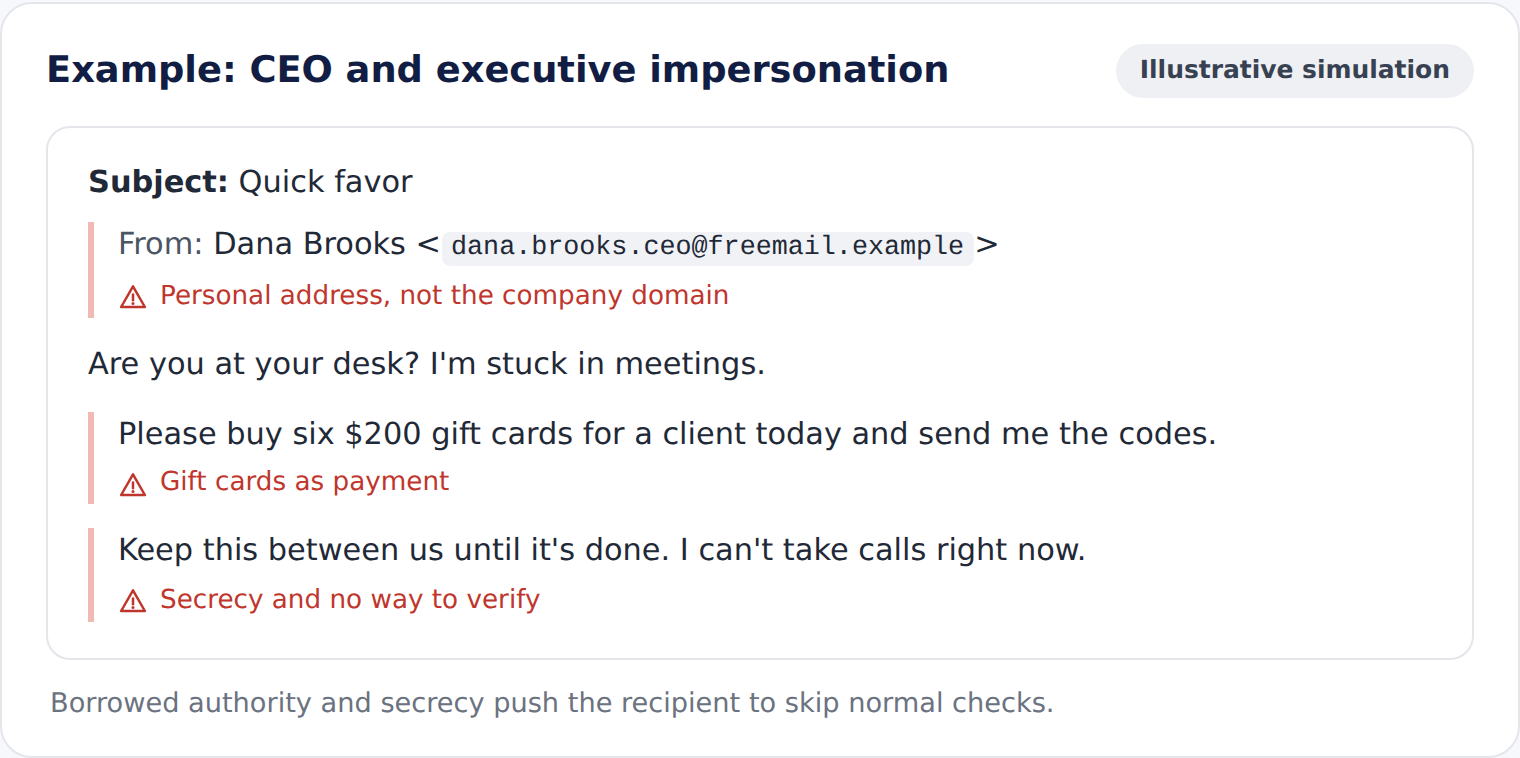
    How the attack works: The attacker borrows authority to rush you past normal checks. In BEC attacks observed by Fortra and reported by APWG, gift cards were the most common payout method in Q2 2026, and attackers swapped display names and subject lines to slip past filters that look for executive names.

    Warning signs: A personal or external email address, a request for secrecy, an unusual payment method and a message sent when the executive is traveling or out of hours.

    What to do: Verify the request by phone or in person using a number you already know, and follow your normal approval process.

    6. Fake IT helpdesk requests

    What it looks like: A message from "IT Support" about a mailbox migration, a security update or a problem with your account.
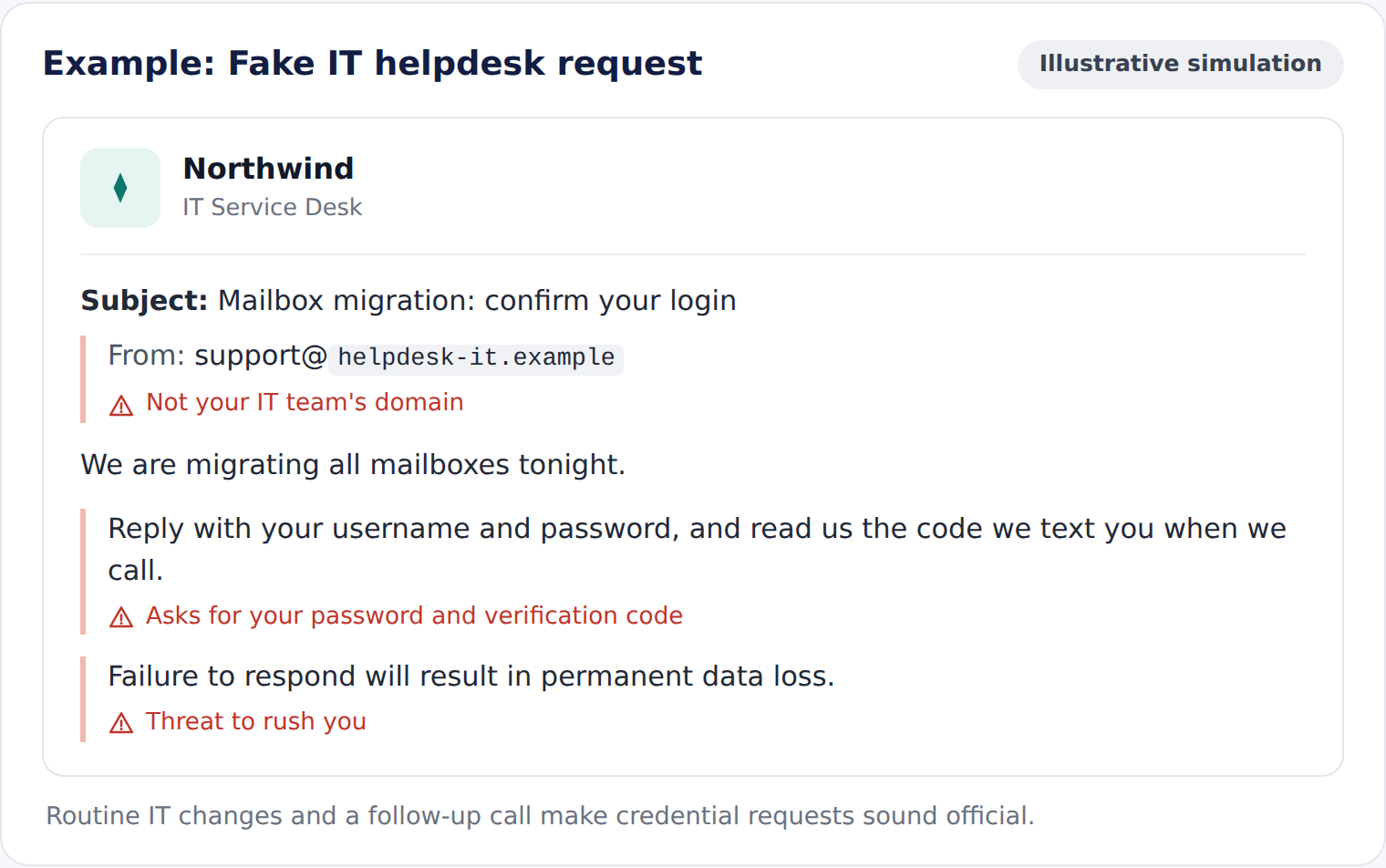
    How the attack works: You are asked to confirm your password, share a verification code, approve a sign-in prompt or install software that gives the attacker remote access. Some attackers follow up with a phone call to add credibility.

    Warning signs: Any request for a password or verification code, an external sender domain, an unexpected download and a change you have not heard about through official channels.

    What to do: Contact your IT team through your usual helpdesk channel before taking any action.

    7. QR code phishing

    What it looks like: An email asking you to scan a QR code to re-enable multi-factor authentication, view a document or collect a payment.
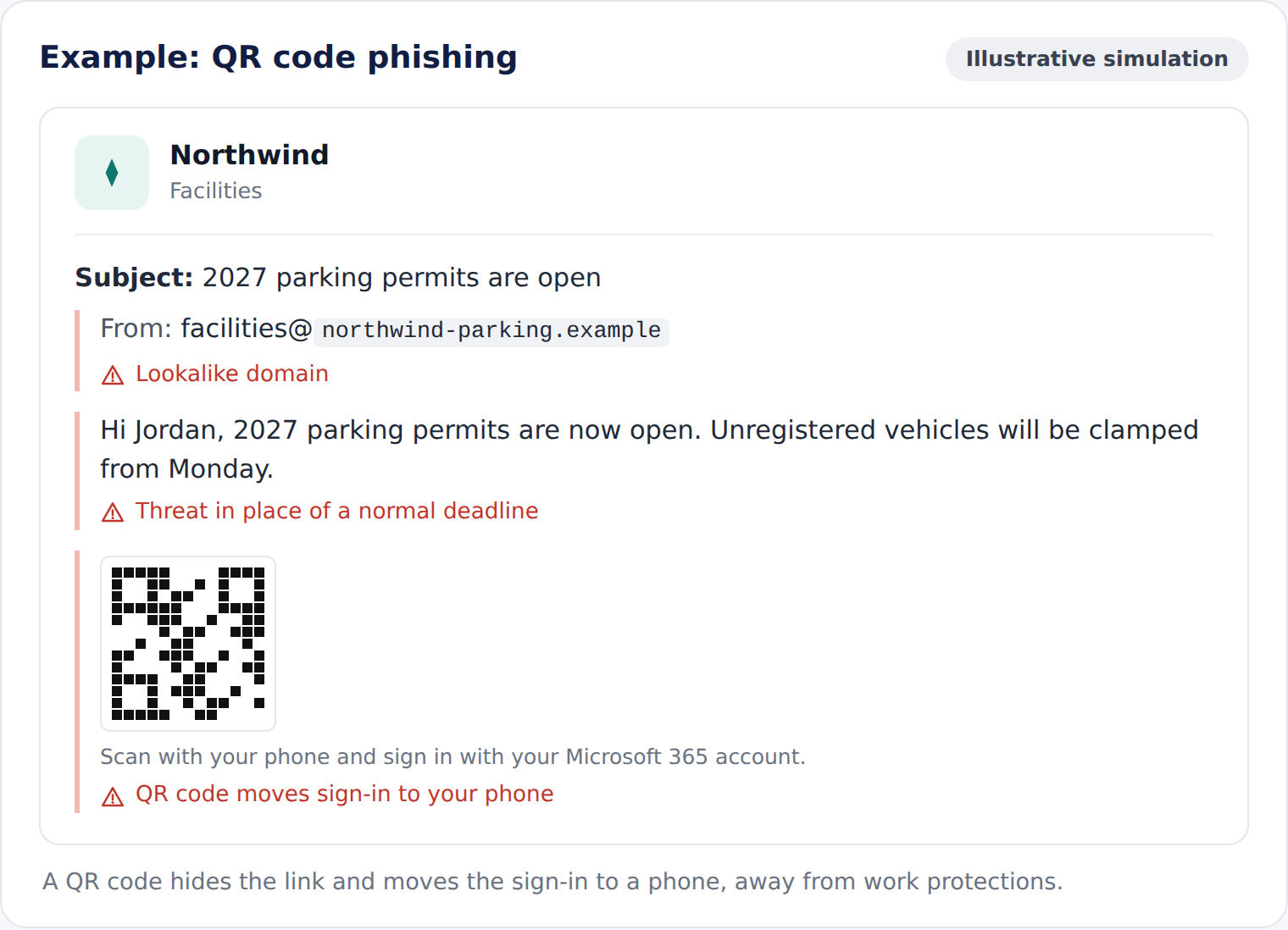
    How the attack works: QR code phishing places the destination link inside an image, making it harder for some email security tools to inspect. Scanning also moves you onto your phone, often outside the protections on your work device.

    Warning signs: A QR code in an email for a task you would normally do by signing in, urgency and a scan that leads to a login page.

    What to do: Do not scan an unexpected QR code to complete a sign-in or security task. Open the service through your usual app or website instead, and report the email.

    8. Hijacked reply chains

    What it looks like: A reply in a genuine conversation you are already part of, from a real supplier or colleague.
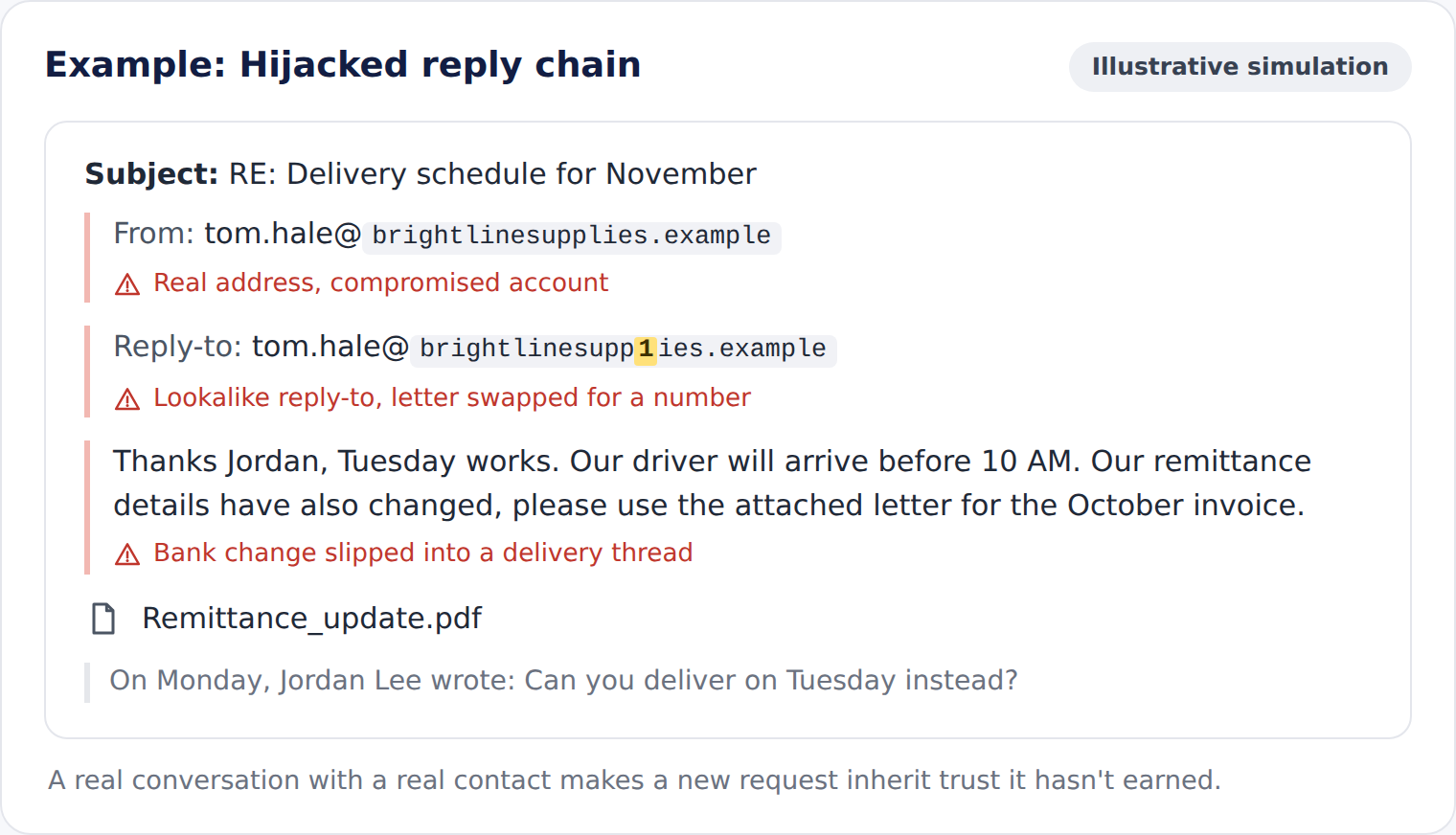
    How the attack works: The attacker has compromised that person's mailbox and joins the thread with a new attachment, a link or updated payment details. Because the history is real, the request feels trustworthy.

    Warning signs: A sudden change in what is being asked, a different writing style, a reply-to address that does not match and a new file type or link the thread never used before.

    What to do: Verify any change to payments, credentials or files through a separate channel, even when the thread itself is genuine.

    9. E-signature requests

    What it looks like: A request to review and sign a contract, NDA or policy document through a well-known e-signature service.
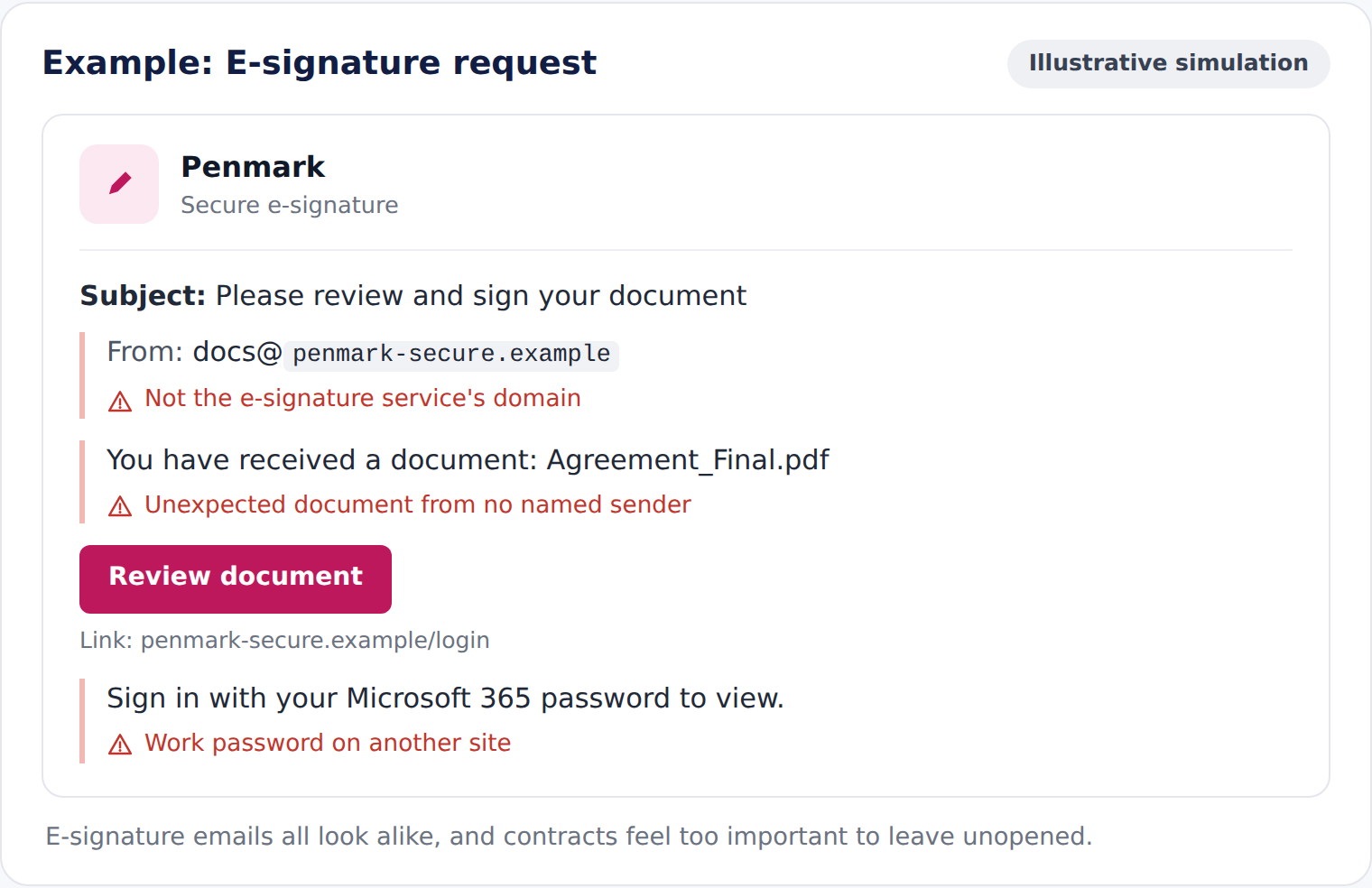
    How the attack works: The "Review document" button opens a fake sign-in page or downloads a malicious file.

    Warning signs: An unexpected signing request, an unfamiliar destination domain or a login page that does not belong to the claimed service.

    What to do: Sign in to the e-signature service directly to check for pending documents, or ask the sender to confirm.

    10. Delivery and shipping scams

    What it looks like: A missed-delivery notice, a customs fee or a request to reschedule a parcel.
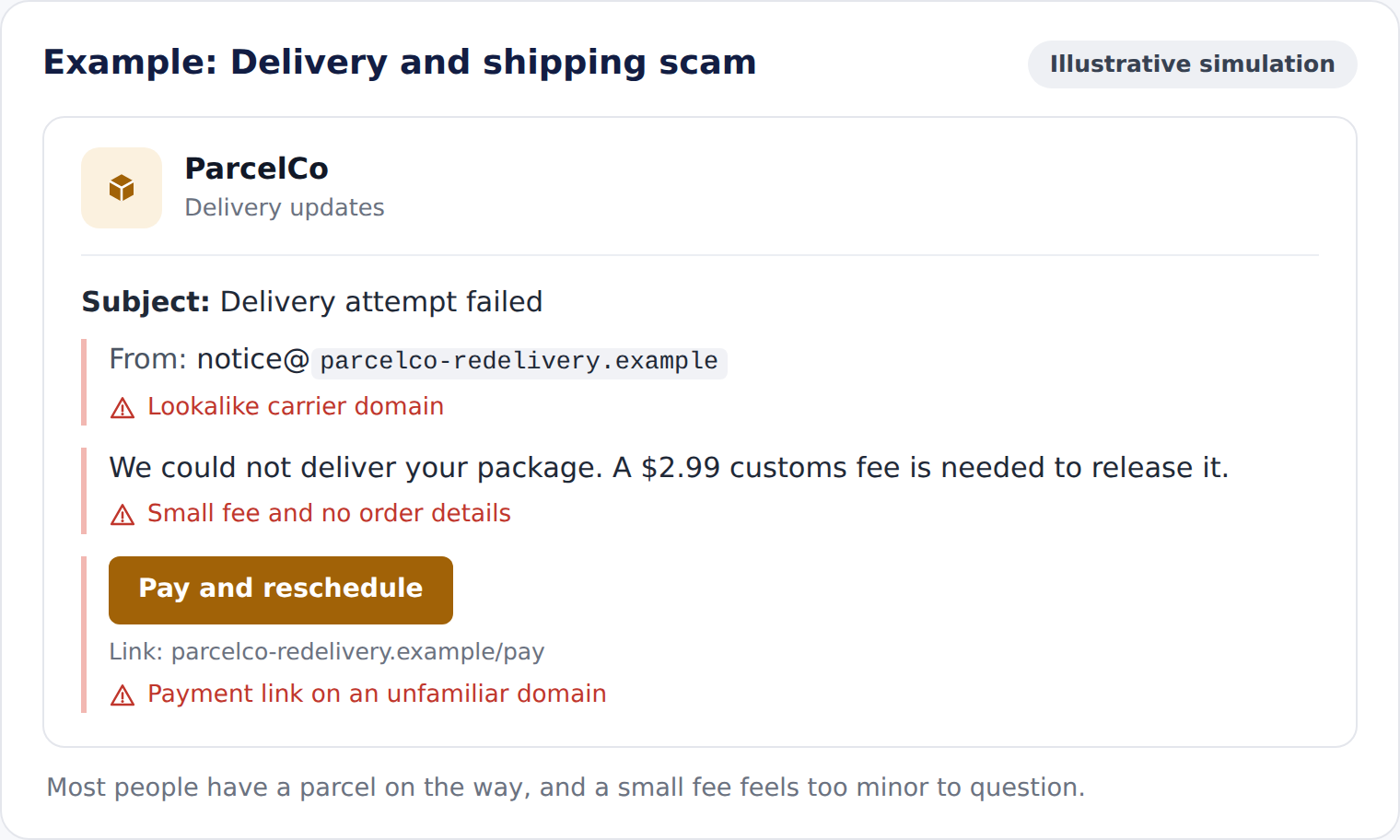
    How the attack works: The attacker asks for a small payment or your card details to release the package, or collects login details for a fake carrier account.

    Warning signs: A delivery you did not order, a small fee, a tracking link on an unfamiliar domain and generic wording with no order details.

    What to do: Track the parcel through the carrier's own website or app, using the tracking number from the retailer.

    11. Callback phishing

    What it looks like: A receipt or renewal notice for a subscription you do not recognize, with a phone number to call if you want to cancel.
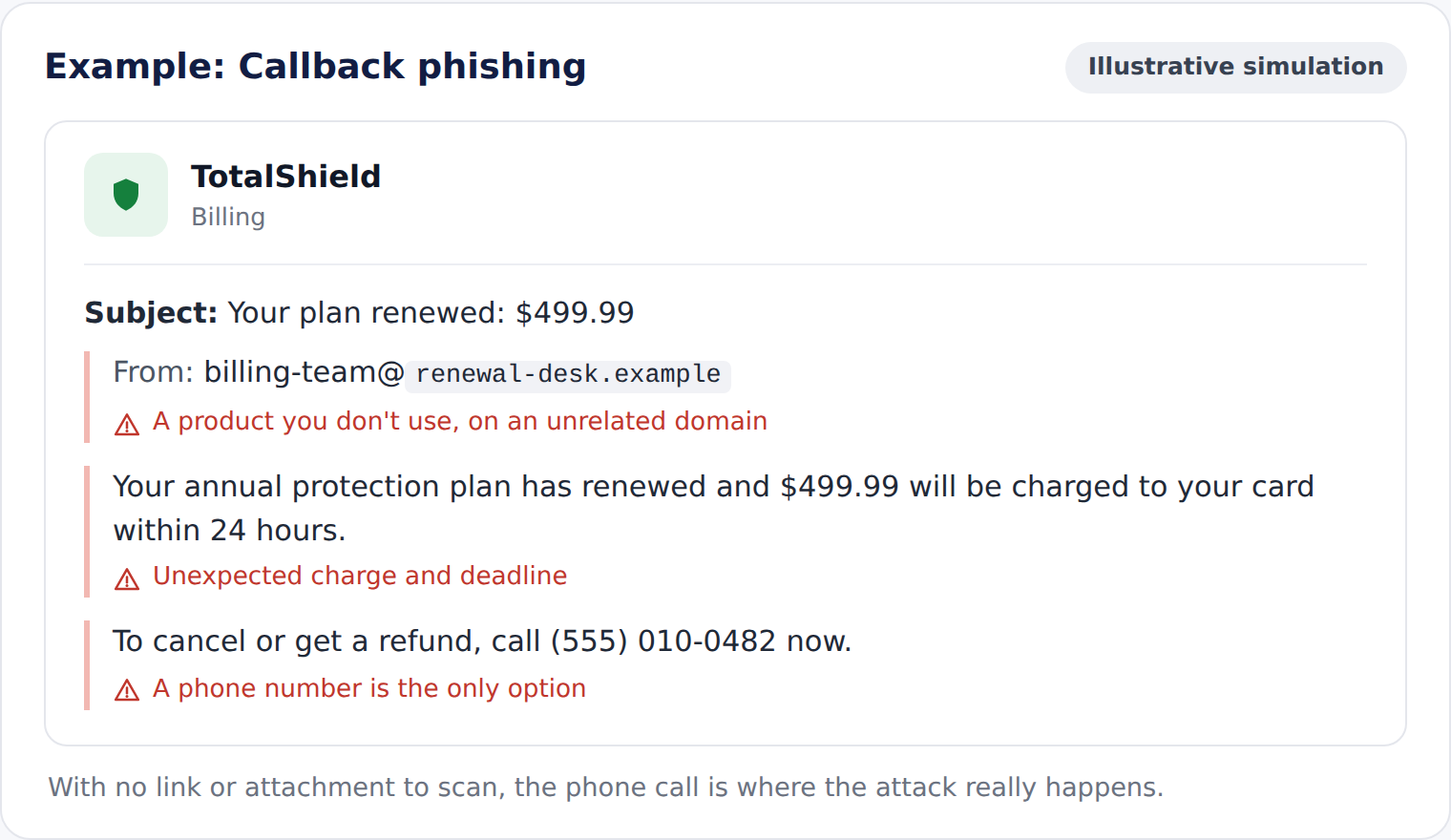
    How the attack works: There is no link to scan, so the email often passes filters. When you call, the attacker talks you into installing remote access software or making a "refund" payment.

    Warning signs: An unexpected charge, a phone number as the only way to respond and pressure to call before the charge goes through.

    What to do: Do not call the number. Check the account through its official website, and report the email.

    12. Job application attachments

    What it looks like: An application or CV sent to HR or a hiring manager, often in response to a real job advert.
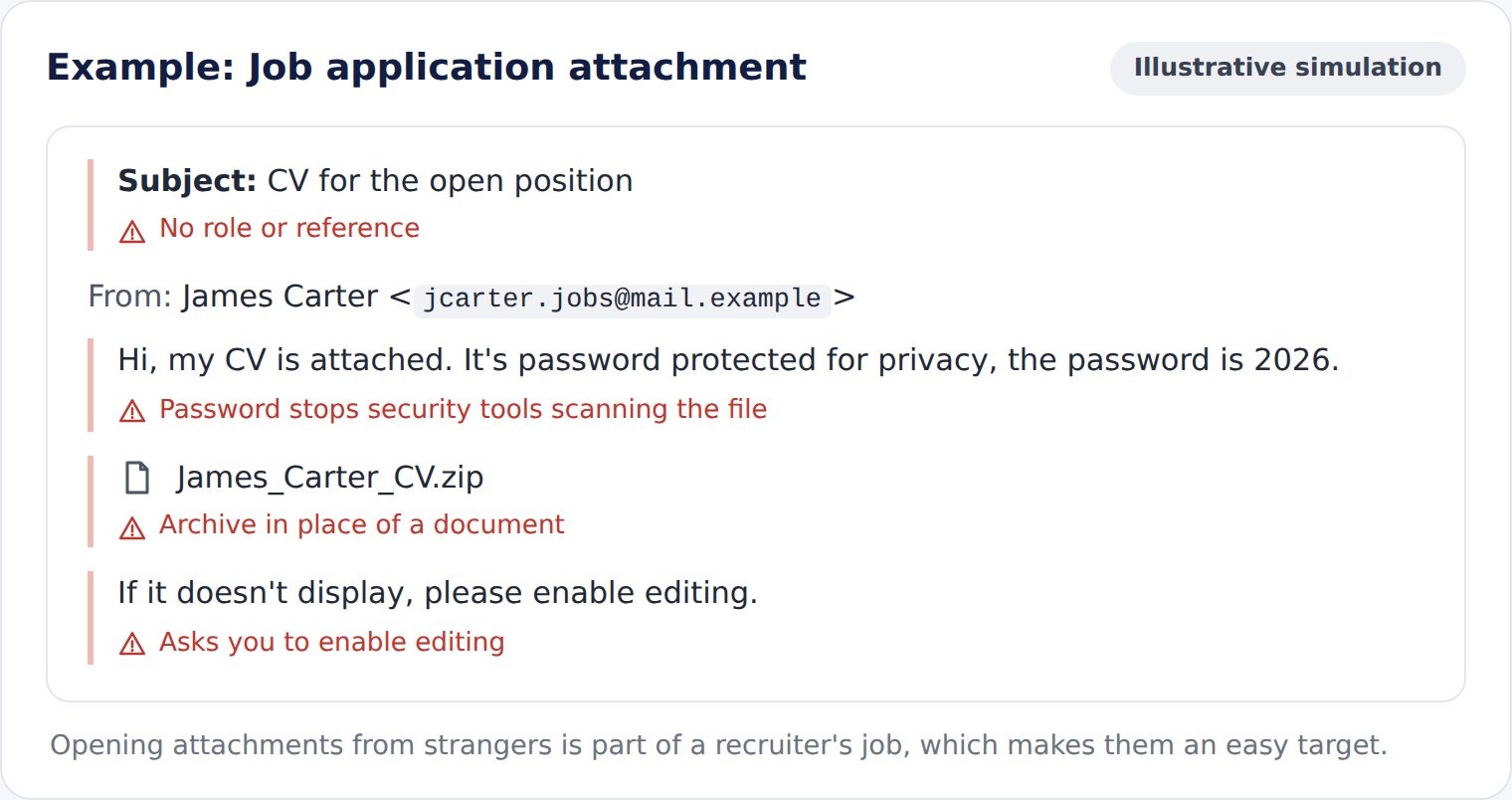
    How the attack works: The attachment or link delivers malware, or leads to a file-sharing page that asks the reader to sign in. Recruiters are a useful target because opening files from strangers is part of their job.

    Warning signs: Password-protected archives, files that ask you to enable editing or macros, unusual file types and links in place of attachments.

    What to do: Handle applications through your applicant tracking system, open files only with approved tools and report anything unusual.

    Interactive: Can you spot the phishing email?

    Today's phishing emails can look just as convincing as legitimate messages. The warning signs are often hidden in the details.

    Compare two realistic emails, decide which one you'd report as phishing and discover the clues that give it away.

    Three scenarios. Two emails each. Can you spot the phish?

    [Embed: usecure-spot-the-phish-blog.html, three scenarios, full width]

    Exercises like this are one of several security awareness training examples that help people practice in a safe setting rather than learning from a real incident.

    [Drop down] Scenario answers

    Microsoft 365 sign-in alert. Both emails report the same unusual sign-in. The phishing version comes from northwind-security.example rather than the company's own domain, sets a 30-minute deadline and links to a sign-in page outside the company domain. The genuine email asks you to secure your account through the Company Portal on your work device.

    Supplier invoice. Both emails share the same invoice number, purchase order and wording. The phishing version comes from brightIinesupplies.example, where one letter is swapped for a lookalike character, and announces new bank details by email. Familiar details don't make new payment instructions trustworthy.

    Shared document. Both notifications share the same file from the same colleague. The phishing version comes from a lookalike sharing domain and asks you to sign in with your Microsoft 365 account on an unfamiliar page before it shows the file.

    How to spot a phishing email

    The most reliable way to spot a phishing email is to judge the request, not the presentation. A message can look perfect and still be fraudulent. These six checks work across almost every example above.

    Start with the request. Ask what the email wants you to do. Signing in, paying, changing bank details, scanning a code, calling a number or opening an unexpected file all deserve a second look, however routine the message seems.

    Check who really sent it. Look past the display name to the full email address and domain. Watch for lookalike spellings, extra hyphens, unusual subdomains and a reply-to address that differs from the sender. Remember that a genuine address can still be compromised.

    Inspect links before you click. On a computer, hover over a link to preview its destination. On a phone, use the link preview if your email app offers one, rather than tapping through to check. If the domain does not belong to the service the email names, do not continue.

    Treat attachments with care. Be cautious with files you were not expecting, archives that need a password, documents that ask you to enable editing or macros and file names with double extensions such as .pdf.html.

    Notice pressure. Deadlines, threats of lost access, requests for secrecy and appeals to authority are designed to stop you thinking. Urgency is a reason to slow down.

    Verify independently. When in doubt, contact the person or organization through a channel you already trust: a known phone number, your usual app or a direct conversation. Never use the contact details in the suspicious message itself.

    Phishing email vs legitimate email

    These are indicators, not rules. Legitimate emails can show some of these signs, and phishing emails can look normal, so check them together and verify when in doubt.

    What to check

    Often seen in legitimate emails

    Potential phishing warning signs

    Sender address

    Matches the organization's real domain

    Uses a lookalike, external or mismatched domain

    Reply-to address

    Same as the sender, or a known domain

    Sends replies to a different domain

    Request

    Fits a process you already know

    Asks you to sign in, pay, scan or open something unexpected

    Links

    Lead to the service's own domain

    Lead to an unfamiliar or lookalike domain

    Attachments

    Expected files in common formats

    Unexpected files, archives or double extensions such as .pdf.html

    Tone and timing

    Consistent with how the sender usually writes

    Urgent, secretive or out of character

    Bank or account changes

    Confirmed through an established process

    Announced by email with pressure to act now

    Verification

    Holds up when you check through a trusted channel

    Falls apart when you contact the sender directly

    What to do if you receive a phishing email

    If an email looks suspicious, report it and leave it alone. Reporting quickly helps your security team warn colleagues and block similar messages before anyone else engages.

    1. Report it. Use your organization's report-phishing button or process. If you are unsure whether something is phishing, report it anyway.
    2. Do not engage. Avoid clicking links, opening attachments, scanning QR codes, replying or calling numbers in the message.
    3. Verify the request separately. If the email might be genuine, contact the sender through a channel you already trust before taking any action.
    4. Follow your incident process. If you have already clicked, entered details or opened a file, tell your IT or security team straight away. Acting fast limits the damage, and nobody should feel embarrassed for raising it.
    5. Delete it once reported. Remove the message from your inbox after reporting so you do not open it by mistake later.

    How businesses can test phishing awareness

    Knowing the warning signs is a starting point. The real test is how people respond when a convincing email arrives on a busy day. With uPhish, organizations can test those responses using realistic phishing simulations.

    Run realistic simulations. Employee phishing simulations send safe, controlled phishing emails to see who clicks, who enters details and who reports. uPhish includes ready-made phishing simulation templates that mirror the themes above, and Auto Phish can schedule simulations to run regularly.

    Follow up with targeted training. With uPhish and uLearn, follow-up training can be delivered after a simulation, depending on how it is configured, so the lesson arrives while the example is still fresh.

    Measure reporting, not just clicks. Track reporting rates alongside clicks, credential submissions and repeat behavior to understand how employee responses improve over time.

    Test again with new scenarios. Vary themes and difficulty over time, and use the results to shape training. For practical tips, see our guide to creating an effective phishing simulation.

    Phishing results are only one part of the risk picture. Someone who reports every simulated email may still have exposed credentials or access to sensitive systems. Understanding wider human risk means connecting those signals. uHealth connects awareness results with identity and access signals, helping IT teams see where human risk is concentrated, decide what to prioritize and see whether risk is improving.

    FAQs

    What are the most common signs of a phishing email?

    The most common signs are an unexpected request to sign in, pay or open a file, a sender address that does not match the display name, links that lead to unfamiliar domains, and pressure to act quickly. Requests to change bank details or keep something confidential are also strong warning signs, even when the email looks professional.

    Can phishing emails come from legitimate email addresses?

    Yes. Attackers who compromise a real mailbox can send phishing emails from a genuine address, sometimes replying within an existing conversation. Some also abuse legitimate services, such as file-sharing platforms, to send real notifications that lead to fake pages. A trusted sender is not proof that a request is safe, so verify unusual requests through a separate channel.

    Can a phishing email look completely legitimate?

    Yes. Many phishing emails use accurate branding, correct grammar and real names, and AI tools make fluent, personalized messages easy to produce. That is why the request matters more than the appearance. If an email asks you to sign in, pay, change details or open something unexpected, check it independently before acting.

    What should I do if I accidentally click a phishing link?

    Tell your IT or security team straight away, even if nothing seemed to happen. If you entered a password, change it from a trusted device and expect the team to review your account and sign-in activity. Do not try to fix it quietly. Reporting early gives your organization the best chance to contain the problem.

    How can companies teach employees to recognize phishing emails?

    A practical approach combines short, regular training with realistic phishing simulations.Training explains the warning signs, simulations give people safe practice, and targeted follow-up training helps anyone who engages with a simulated email. Encouraging reporting, and thanking people who report, builds the habit that matters most.

    How often should employees receive phishing simulation training?

    Phishing awareness works best as an ongoing program rather than an annual event. Many organizations run simulations on a regular schedule, such as monthly, and vary the themes and difficulty each time. New starters benefit from early practice, and roles that handle payments or sensitive data may need more frequent, targeted scenarios.

    Can your employees spot these phishing attacks?

    Knowing the warning signs is one thing. Recognizing a convincing phishing email when it lands in your inbox is another.

    With usecure, you can test employee responses using realistic phishing simulations, deliver targeted training and track improvement over time.

    Get started free  |  Book a demo

    ‍

    BOOK A DEMO

    See Human Risk Intelligence in action

    A 30-minute walkthrough of how to cut human risk across your users, tailored to MSPs and IT teams.

    Get a Demo

    Subscribe to newsletter

    By clicking Sign Up you're confirming that you agree with our Terms and Conditions.
    Thank you! Your submission has been received!
    Oops! Something went wrong while submitting the form.

    SEO title: 12 Phishing Email Examples & Warning Signs
    Meta description: See 12 realistic phishing email examples, learn the warning signs and discover how to spot, report and avoid phishing attacks.
    Slug: the-most-common-examples-of-a-phishing-email (retain)

    12 phishing email examples and how to spot them

    A phishing email no longer has to look suspicious to work. Many arrive with correct spelling, clean formatting and a familiar logo, copying everyday requests such as Microsoft 365 sign-in prompts, shared documents, supplier invoices and messages from a manager. Attackers also use AI-powered phishing attacks to write fluent, personalized messages at scale.

    People remain central to how breaches happen. Verizon's 2026 Data Breach Investigations Report found that the non-malicious human element was present in 62% of breaches. That includes errors and social engineering beyond phishing, but it shows why helping people recognize and respond to suspicious requests still matters. Phishing itself remains active: the APWG recorded a 10.1% rise in phishing attacks in Q2 2026, and June's 425,808 attacks were its highest monthly total since April 2023.

    Below are 12 realistic phishing email examples, the warning signs in each and what to do if one reaches your inbox. For phishing beyond email, see our guide to the different types of phishing attacks.

    What does a phishing email look like?

    A phishing email is a message that pretends to come from a trusted person or organization so that the recipient will click a link, open a file, share credentials, send money or make a change they otherwise would not. Some are sent to thousands of people at once. Others are spear phishing attacks, researched and written for one person or team.

    The common warning signs are:

    • A sender name that looks familiar but an email address or domain that does not match
    • A request to sign in, pay, download, scan or reply that you were not expecting
    • Pressure to act quickly, often with a deadline or a threat of lost access
    • Links or QR codes that lead somewhere other than the service they claim to represent
    • Requests to change bank details, bypass a normal process or keep something confidential
    • A tone, signature or level of formality that feels slightly off for the sender

    Attackers reuse familiar branding, lookalike domains and personal details to make messages convincing. Some even send phishing emails from compromised accounts, so a legitimate sender address is not always proof that a message is safe.

    12 phishing email examples

    The table below summarizes 12 phishing email examples commonly encountered in workplace inboxes, with warning signs and practical steps to stay safe.

    Not every unexpected email is malicious, and not every phishing email is unexpected. The goal is to pause and verify, not to distrust everything

    Phishing email example

    What it pretends to be

    What the attacker wants

    Key warning sign

    What to do

    Fake invoice

    An overdue supplier invoice

    Payment to a new bank account

    Changed bank details

    Call the supplier on a known number

    Microsoft 365 account alert

    A password, mailbox or sign-in notice

    Your Microsoft 365 credentials

    Link to a non-Microsoft domain

    Open Microsoft 365 directly

    Cloud document sharing

    A colleague sharing a file

    Your sign-in details

    Sign-in page on an unfamiliar domain

    Confirm with the sender separately

    HR and payroll impersonation

    A policy, salary or payroll update

    Credentials or redirected pay

    Request to change bank details by email

    Go to the HR system directly

    CEO and executive impersonation

    An urgent request from a senior leader

    Gift cards, a transfer or files

    Secrecy and an unusual payment method

    Verify by phone or in person

    Fake IT helpdesk request

    Your IT support team

    Passwords, codes or remote access

    Any request for a password or code

    Contact your helpdesk directly

    QR code phishing

    A security or document prompt

    Credentials entered on your phone

    A QR code for a sign-in task

    Use the service's usual app or site

    Hijacked reply chain

    A reply in a real conversation

    Payment changes or credentials

    A sudden change in the request

    Verify through a separate channel

    E-signature request

    A contract waiting for signature

    Your sign-in details

    Login page on an unfamiliar domain

    Check the e-signature service directly

    Delivery and shipping scam

    A missed delivery or customs fee

    Card details or a small payment

    A fee for a parcel you did not order

    Track through the carrier's own site

    Callback phishing

    A subscription renewal receipt

    A phone call leading to remote access

    A phone number as the only action

    Check the account on its official site

    Job application attachment

    A CV or job application

    Malware or credentials

    Password-protected or unusual files

    Use your applicant tracking system

    1. Fake invoice and payment requests

    What it looks like: An overdue invoice or a payment reminder from a supplier, sometimes with a familiar name, logo and invoice number.

    How the attack works: The attacker wants you to open a malicious attachment, pay through a fake portal or update a supplier's bank details. These business email compromise attacks are growing: APWG reports that wire-transfer BEC attacks observed by Fortra rose 88% from Q1 to Q2 2026. One prolific group paired fake invoices with an invented email thread to make the request look already approved.

    Warning signs: New or changed bank details, an invoice you cannot match to an order, a lookalike sender domain and pressure to pay before a deadline.

    What to do: Contact the supplier using details you already hold, not those in the email, and follow your organization's payment-verification process.

    2. Microsoft 365 account alerts

    What it looks like: A notice that your password is expiring, your mailbox is full, a sign-in was blocked or your multi-factor authentication needs re-registering.

    How the attack works: The link leads to a convincing copy of the Microsoft 365 sign-in page, where attackers capture credentials. Some phishing kits can also steal session tokens, potentially allowing attackers to bypass certain multi-factor authentication protections.

    Warning signs: A sender that is not Microsoft or your own IT team, a link domain that does not belong to Microsoft, a generic greeting and a short deadline.

    What to do: Do not use the link. Open Microsoft 365 from your usual bookmark or app, check for any real alerts there and report the email.

    3. Cloud document sharing

    What it looks like: A notification that someone has shared a file with you, often with a name like "Q3 payment schedule" or "Revised contract."

    How the attack works: Opening the file takes you to a page that asks you to sign in first. Some of these notifications come from genuine sharing services, sent from an account the attacker has already compromised.

    Warning signs: A file you were not expecting, a sender you do not usually work with, a vague message and a sign-in step for a document you would normally open directly.

    What to do: Ask the sender through a separate channel whether they shared it, and open files through your usual app rather than the email.

    4. HR and payroll impersonation

    What it looks like: An update to the holiday policy, a salary review, a new benefits portal or a request to confirm your payroll details.

    How the attack works: The attacker wants your credentials, or wants you to submit new bank details so your pay is redirected. These emails work because most people want to read them straight away.

    Warning signs: A link to an unfamiliar portal, a request to change bank details by email and an HR sender address that does not match your organization's domain.

    What to do: Open your HR or payroll system directly, and confirm any request with the HR team before changing anything.

    5. CEO and executive impersonation

    What it looks like: A short message from a senior leader: "Are you free? I need a quick favor." The follow-up asks for gift cards, an urgent transfer or confidential files.

    How the attack works: The attacker borrows authority to rush you past normal checks. In BEC attacks observed by Fortra and reported by APWG, gift cards were the most common payout method in Q2 2026, and attackers swapped display names and subject lines to slip past filters that look for executive names.

    Warning signs: A personal or external email address, a request for secrecy, an unusual payment method and a message sent when the executive is traveling or out of hours.

    What to do: Verify the request by phone or in person using a number you already know, and follow your normal approval process.

    6. Fake IT helpdesk requests

    What it looks like: A message from "IT Support" about a mailbox migration, a security update or a problem with your account.

    How the attack works: You are asked to confirm your password, share a verification code, approve a sign-in prompt or install software that gives the attacker remote access. Some attackers follow up with a phone call to add credibility.

    Warning signs: Any request for a password or verification code, an external sender domain, an unexpected download and a change you have not heard about through official channels.

    What to do: Contact your IT team through your usual helpdesk channel before taking any action.

    7. QR code phishing

    What it looks like: An email asking you to scan a QR code to re-enable multi-factor authentication, view a document or collect a payment.

    How the attack works: QR code phishing places the destination link inside an image, making it harder for some email security tools to inspect. Scanning also moves you onto your phone, often outside the protections on your work device.

    Warning signs: A QR code in an email for a task you would normally do by signing in, urgency and a scan that leads to a login page.

    What to do: Do not scan an unexpected QR code to complete a sign-in or security task. Open the service through your usual app or website instead, and report the email.

    8. Hijacked reply chains

    What it looks like: A reply in a genuine conversation you are already part of, from a real supplier or colleague.

    How the attack works: The attacker has compromised that person's mailbox and joins the thread with a new attachment, a link or updated payment details. Because the history is real, the request feels trustworthy.

    Warning signs: A sudden change in what is being asked, a different writing style, a reply-to address that does not match and a new file type or link the thread never used before.

    What to do: Verify any change to payments, credentials or files through a separate channel, even when the thread itself is genuine.

    9. E-signature requests

    What it looks like: A request to review and sign a contract, NDA or policy document through a well-known e-signature service.

    How the attack works: The "Review document" button opens a fake sign-in page or downloads a malicious file.

    Warning signs: An unexpected signing request, an unfamiliar destination domain or a login page that does not belong to the claimed service.

    What to do: Sign in to the e-signature service directly to check for pending documents, or ask the sender to confirm.

    10. Delivery and shipping scams

    What it looks like: A missed-delivery notice, a customs fee or a request to reschedule a parcel.

    How the attack works: The attacker asks for a small payment or your card details to release the package, or collects login details for a fake carrier account.

    Warning signs: A delivery you did not order, a small fee, a tracking link on an unfamiliar domain and generic wording with no order details.

    What to do: Track the parcel through the carrier's own website or app, using the tracking number from the retailer.

    11. Callback phishing

    What it looks like: A receipt or renewal notice for a subscription you do not recognize, with a phone number to call if you want to cancel.

    How the attack works: There is no link to scan, so the email often passes filters. When you call, the attacker talks you into installing remote access software or making a "refund" payment.

    Warning signs: An unexpected charge, a phone number as the only way to respond and pressure to call before the charge goes through.

    What to do: Do not call the number. Check the account through its official website, and report the email.

    12. Job application attachments

    What it looks like: An application or CV sent to HR or a hiring manager, often in response to a real job advert.

    How the attack works: The attachment or link delivers malware, or leads to a file-sharing page that asks the reader to sign in. Recruiters are a useful target because opening files from strangers is part of their job.

    Warning signs: Password-protected archives, files that ask you to enable editing or macros, unusual file types and links in place of attachments.

    What to do: Handle applications through your applicant tracking system, open files only with approved tools and report anything unusual.

    Interactive: Can you spot the phishing email?

    Today's phishing emails can look just as convincing as legitimate messages. The warning signs are often hidden in the details.

    Compare two realistic emails, decide which one you'd report as phishing and discover the clues that give it away.

    Three scenarios. Two emails each. Can you spot the phish?

    [Embed: usecure-spot-the-phish-blog.html, three scenarios, full width]

    Exercises like this are one of several security awareness training examples that help people practice in a safe setting rather than learning from a real incident.

    [Drop down] Scenario answers

    Microsoft 365 sign-in alert. Both emails report the same unusual sign-in. The phishing version comes from northwind-security.example rather than the company's own domain, sets a 30-minute deadline and links to a sign-in page outside the company domain. The genuine email asks you to secure your account through the Company Portal on your work device.

    Supplier invoice. Both emails share the same invoice number, purchase order and wording. The phishing version comes from brightIinesupplies.example, where one letter is swapped for a lookalike character, and announces new bank details by email. Familiar details don't make new payment instructions trustworthy.

    Shared document. Both notifications share the same file from the same colleague. The phishing version comes from a lookalike sharing domain and asks you to sign in with your Microsoft 365 account on an unfamiliar page before it shows the file.

    How to spot a phishing email

    The most reliable way to spot a phishing email is to judge the request, not the presentation. A message can look perfect and still be fraudulent. These six checks work across almost every example above.

    Start with the request. Ask what the email wants you to do. Signing in, paying, changing bank details, scanning a code, calling a number or opening an unexpected file all deserve a second look, however routine the message seems.

    Check who really sent it. Look past the display name to the full email address and domain. Watch for lookalike spellings, extra hyphens, unusual subdomains and a reply-to address that differs from the sender. Remember that a genuine address can still be compromised.

    Inspect links before you click. On a computer, hover over a link to preview its destination. On a phone, use the link preview if your email app offers one, rather than tapping through to check. If the domain does not belong to the service the email names, do not continue.

    Treat attachments with care. Be cautious with files you were not expecting, archives that need a password, documents that ask you to enable editing or macros and file names with double extensions such as .pdf.html.

    Notice pressure. Deadlines, threats of lost access, requests for secrecy and appeals to authority are designed to stop you thinking. Urgency is a reason to slow down.

    Verify independently. When in doubt, contact the person or organization through a channel you already trust: a known phone number, your usual app or a direct conversation. Never use the contact details in the suspicious message itself.

    Phishing email vs legitimate email

    These are indicators, not rules. Legitimate emails can show some of these signs, and phishing emails can look normal, so check them together and verify when in doubt.

    What to check

    Often seen in legitimate emails

    Potential phishing warning signs

    Sender address

    Matches the organization's real domain

    Uses a lookalike, external or mismatched domain

    Reply-to address

    Same as the sender, or a known domain

    Sends replies to a different domain

    Request

    Fits a process you already know

    Asks you to sign in, pay, scan or open something unexpected

    Links

    Lead to the service's own domain

    Lead to an unfamiliar or lookalike domain

    Attachments

    Expected files in common formats

    Unexpected files, archives or double extensions such as .pdf.html

    Tone and timing

    Consistent with how the sender usually writes

    Urgent, secretive or out of character

    Bank or account changes

    Confirmed through an established process

    Announced by email with pressure to act now

    Verification

    Holds up when you check through a trusted channel

    Falls apart when you contact the sender directly

    What to do if you receive a phishing email

    If an email looks suspicious, report it and leave it alone. Reporting quickly helps your security team warn colleagues and block similar messages before anyone else engages.

    1. Report it. Use your organization's report-phishing button or process. If you are unsure whether something is phishing, report it anyway.
    2. Do not engage. Avoid clicking links, opening attachments, scanning QR codes, replying or calling numbers in the message.
    3. Verify the request separately. If the email might be genuine, contact the sender through a channel you already trust before taking any action.
    4. Follow your incident process. If you have already clicked, entered details or opened a file, tell your IT or security team straight away. Acting fast limits the damage, and nobody should feel embarrassed for raising it.
    5. Delete it once reported. Remove the message from your inbox after reporting so you do not open it by mistake later.

    How businesses can test phishing awareness

    Knowing the warning signs is a starting point. The real test is how people respond when a convincing email arrives on a busy day. With uPhish, organizations can test those responses using realistic phishing simulations.

    Run realistic simulations. Employee phishing simulations send safe, controlled phishing emails to see who clicks, who enters details and who reports. uPhish includes ready-made phishing simulation templates that mirror the themes above, and Auto Phish can schedule simulations to run regularly.

    Follow up with targeted training. With uPhish and uLearn, follow-up training can be delivered after a simulation, depending on how it is configured, so the lesson arrives while the example is still fresh.

    Measure reporting, not just clicks. Track reporting rates alongside clicks, credential submissions and repeat behavior to understand how employee responses improve over time.

    Test again with new scenarios. Vary themes and difficulty over time, and use the results to shape training. For practical tips, see our guide to creating an effective phishing simulation.

    Phishing results are only one part of the risk picture. Someone who reports every simulated email may still have exposed credentials or access to sensitive systems. Understanding wider human risk means connecting those signals. uHealth connects awareness results with identity and access signals, helping IT teams see where human risk is concentrated, decide what to prioritize and see whether risk is improving.

    FAQs

    What are the most common signs of a phishing email?

    The most common signs are an unexpected request to sign in, pay or open a file, a sender address that does not match the display name, links that lead to unfamiliar domains, and pressure to act quickly. Requests to change bank details or keep something confidential are also strong warning signs, even when the email looks professional.

    Can phishing emails come from legitimate email addresses?

    Yes. Attackers who compromise a real mailbox can send phishing emails from a genuine address, sometimes replying within an existing conversation. Some also abuse legitimate services, such as file-sharing platforms, to send real notifications that lead to fake pages. A trusted sender is not proof that a request is safe, so verify unusual requests through a separate channel.

    Can a phishing email look completely legitimate?

    Yes. Many phishing emails use accurate branding, correct grammar and real names, and AI tools make fluent, personalized messages easy to produce. That is why the request matters more than the appearance. If an email asks you to sign in, pay, change details or open something unexpected, check it independently before acting.

    What should I do if I accidentally click a phishing link?

    Tell your IT or security team straight away, even if nothing seemed to happen. If you entered a password, change it from a trusted device and expect the team to review your account and sign-in activity. Do not try to fix it quietly. Reporting early gives your organization the best chance to contain the problem.

    How can companies teach employees to recognize phishing emails?

    A practical approach combines short, regular training with realistic phishing simulations.Training explains the warning signs, simulations give people safe practice, and targeted follow-up training helps anyone who engages with a simulated email. Encouraging reporting, and thanking people who report, builds the habit that matters most.

    How often should employees receive phishing simulation training?

    Phishing awareness works best as an ongoing program rather than an annual event. Many organizations run simulations on a regular schedule, such as monthly, and vary the themes and difficulty each time. New starters benefit from early practice, and roles that handle payments or sensitive data may need more frequent, targeted scenarios.

    Can your employees spot these phishing attacks?

    Knowing the warning signs is one thing. Recognizing a convincing phishing email when it lands in your inbox is another.

    With usecure, you can test employee responses using realistic phishing simulations, deliver targeted training and track improvement over time.

    Get started free  |  Book a demo

    ‍

    Abonnez-vous à la newsletter

    Abonnez-vous à la newsletter

    En cliquant sur «Abonnez-vous», vous confirmez que vous acceptez nos Conditions générales.
    Merci ! Votre inscription a bien été prise en compte !
    Oups ! Une erreur est survenue lors de l'envoi du formulaire.

    Découvrez comment les cabinets de services professionnels réduisent le risque humain avec usecure

    Découvrez comment les équipes IT des services professionnels utilisent usecure pour protéger les données sensibles de leurs clients, maintenir leur conformité et préserver leur réputation — sans perturber le travail facturable.

    Related posts

    Explore more insights, updates, and resources from usecure.